
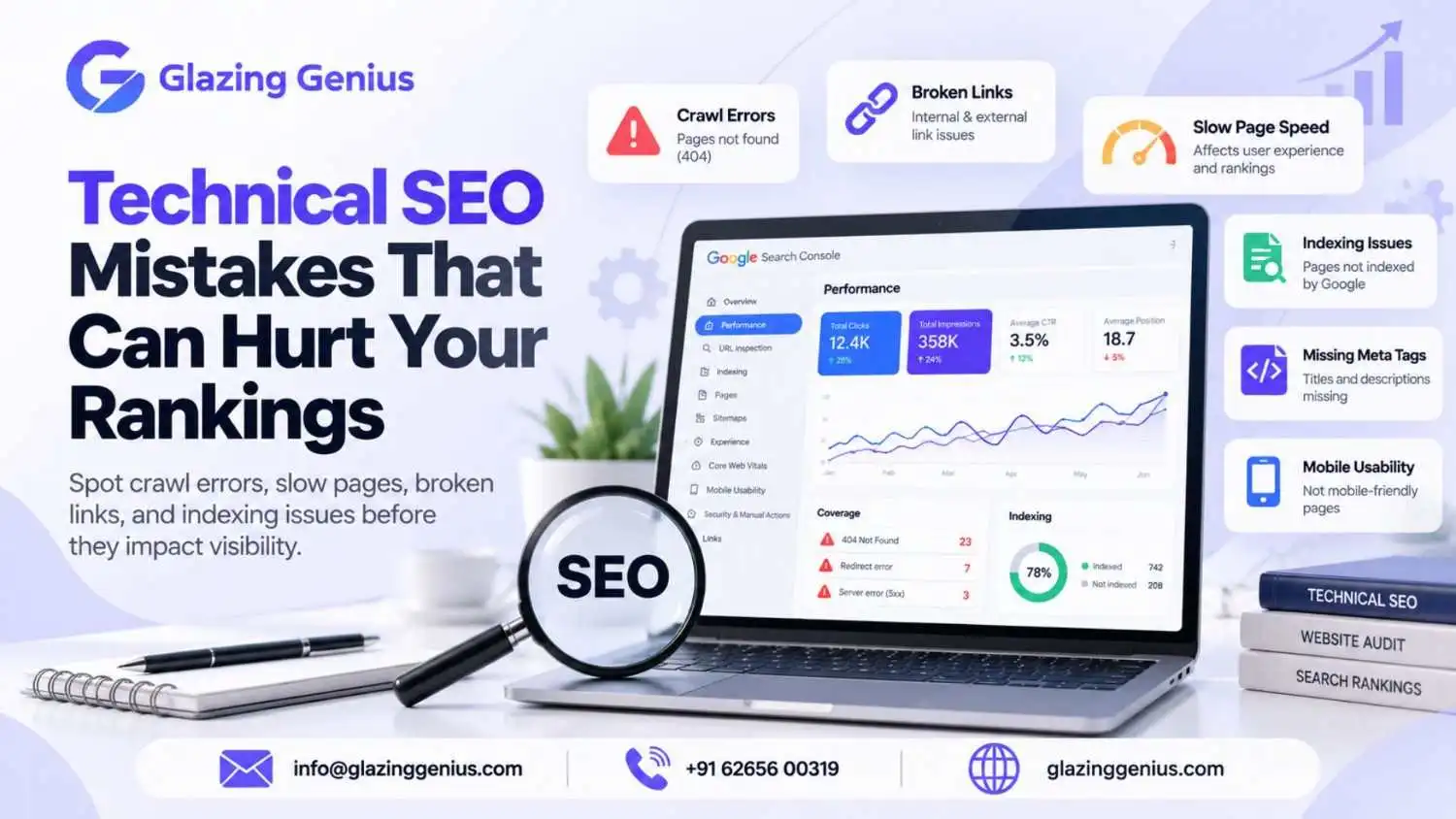
Technical SEO Mistakes That Can Hurt Your Rankings
What if Google cannot find the pages you want to rank? You could publish helpful content, build quality links and follow SEO best practices, yet still miss valuable search traffic. The reason might be hidden in your website’s technical setup.
A single noindex tag can keep an important page out of search results. Broken links, duplicate URLs and slow loading times can create more problems. The tricky part is knowing where to look.
This guide covers the technical SEO mistakes that can hurt your rankings in 2026, how to spot them and what you can do to fix them.
What Are Technical SEO Issues?
Technical SEO issues are problems that affect how search engines access, understand and index a website. They may include broken links, slow pages, incorrect settings or duplicate URLs. These issues can prevent important pages from appearing in search results.
Technical SEO is related to your site structure to help search engines find useful content and know which pages to show. Good Technical SEO will also improve your users experience.
You do not need to fix every technical warning at once. Start with errors that block important pages or affect many URLs. Then work on smaller issues that can improve website performance.
Common Technical SEO Mistakes to Avoid
Many websites will encounter similar issues with their technical SEO. This may be caused by a website redesign or incorrect settings and poor maintenance. Here is a list of common SEO mistakes which can affect your rankings and how to fix them.
1. Accidental Noindex Tags
A noindex tag tells search engines not to include a page in their search results. It is useful for pages that should stay out of search listings. However, adding it to an important page can prevent that page from appearing on Google.
This mistake can happen when a developer copies settings from a test website. It can also occur when someone changes SEO plugin settings by accident.
How to fix it: Check important pages for the noindex directive. Review the page’s HTML or HTTP headers. You can also inspect the URL in Google Search Console. Remove the directive if the page should appear in search results. Make sure the page remains accessible to search engines.
2. Wasted Crawl Budget
Crawl budget refers to the URLs Google can and wants to crawl on a website within a given period. It matters most for large websites with many pages. Duplicate URLs, endless filter combinations and low-value pages can waste crawling resources.
For smaller websites, crawl budget is often not the main concern. However, unnecessary URLs can still make it harder to manage crawling and indexing.
How to fix it: Review your website’s URL structure. Avoid creating many unnecessary URLs through filters and tracking parameters. Use internal links to highlight important pages. Keep your XML sitemap focused on the canonical URLs you want indexed. Use robots.txt carefully because blocking a URL does not remove it from Google’s index by itself.
3. Slow Page Speed and Core Web Vitals
Slow pages can frustrate visitors and make a website harder to use. Page speed SEO involves improving loading speed, responsiveness and visual stability. Google also uses Core Web Vitals to assess aspects of page experience.
Large images, excessive scripts and poor server response times can slow down a website. Layout shifts can also cause problems when visitors try to click buttons or read content.
How to fix it: Compress images and use suitable image formats. Remove unnecessary scripts and plugins. Enable browser caching where appropriate. Check your hosting performance. Use PageSpeed Insights to review performance and Core Web Vitals.
Focus on real user experience rather than chasing a perfect score. Fix the problems that affect visitors the most.
4. Duplicate Content
Duplicate content occurs when the same or very similar content appears at multiple URLs. For example, a product page may load with different tracking parameters. A website may also create separate URLs for HTTP and HTTPS versions.
Duplicate content can make it harder for search engines to identify the preferred page. It may also divide internal links and other signals across different URLs.
How to fix it: Choose a preferred URL for each important page. Use redirects when old URLs should lead to new ones. Add canonical tags where appropriate. Keep internal links consistent and include preferred URLs in your XML sitemap.
Do not assume that every similar page is harmful. Some pages need similar information. Focus on duplicate URLs that create confusion or offer little additional value.
5. Broken Links and 404 Pages
A broken link leads to a page that cannot be found or accessed. A 404 error usually means the requested page does not exist. Broken internal links can interrupt navigation and make it harder for visitors to find useful information.
These errors often appear after a website redesign, a URL change or the removal of old pages. External websites may also link to URLs that no longer work.
How to fix it: Run a website audit to find broken internal links. Update links that point to incorrect URLs. If a page has moved permanently, redirect its old URL to a relevant replacement. Keep a 404 page for URLs that have no suitable replacement.
Not every 404 error needs a redirect. Some missing URLs are expected. Focus on broken links that affect useful pages or important user journeys.
6. Redirect Chains and Loops
A redirect sends visitors and search engines from one URL to another. A redirect chain occurs when a URL passes through several redirects before reaching its final destination. A redirect loop occurs when URLs keep sending requests back and forth.
Long chains can slow down page access and make crawling less efficient. Loops can stop visitors and search engines from reaching the destination.
How to fix it: Review redirects during regular website audits. Point old URLs directly to the final destination where possible. Remove outdated redirect rules. Test important URLs after website migrations to make sure they reach the correct pages.
Use permanent redirects when a page has moved permanently. Temporary redirects are suitable when the change is temporary.
7. Pages That Are Not Mobile Friendly
Many visitors browse websites on mobile devices. A page that works well on a desktop may be difficult to use on a smaller screen. Text may appear too small, buttons may be too close together and content may extend beyond the screen.
Poor mobile usability can lead to a frustrating experience. It can also create problems when Google evaluates the mobile version of your website.
How to fix it: Use a responsive website design. Make sure text is easy to read without zooming. Keep buttons large enough to tap comfortably. Avoid horizontal scrolling and check that important content appears on mobile devices.
Test key pages on different screen sizes. Also make sure the mobile version contains the same important content and metadata as the desktop version.
8. Crawl Errors in Search Console
Crawl errors occur when Google has trouble accessing a URL. Common causes include server errors, blocked resources and pages that return incorrect status codes. These problems may prevent Google from discovering or refreshing important content.
Google Search Console provides reports that help website owners understand crawling and indexing problems. However, not every reported URL needs a fix.
How to fix it: Open the relevant reports in Google Search Console. Inspect affected URLs and check their HTTP status codes. Resolve server errors, update incorrect links and review accidental access restrictions.
Prioritise pages that matter to your business. A temporary error on an unimportant URL may need less attention than a persistent error on a key service page.
9. Missing or Wrong Canonical Tags
A canonical tag helps indicate which URL should be treated as the preferred version of similar or duplicate pages. It is useful when a website has several URLs with similar content.
A missing or incorrect canonical tag can send confusing signals to search engines. For example, a page may point its canonical tag to an unrelated URL.
How to fix it: Review canonical tags on important pages. Make sure each tag points to the intended preferred URL. Check that the target page is accessible and suitable for indexing. Keep internal links and sitemap entries consistent with your preferred URLs.
Canonical tags are signals rather than absolute commands. Google may choose a different canonical URL if other signals suggest another page is more suitable. Learn more in Google’s guide to consolidating duplicate URLs.
10. Orphan Pages
An orphan page has no internal links pointing to it from other pages on the website. Search engines may still discover it through a sitemap or external link. However, visitors may struggle to find it through normal navigation.
Important service pages, blog posts and product pages should not remain disconnected from the rest of the website.
How to fix it: Find orphan pages using a website audit tool. Compare your crawl results with the URLs in your XML sitemap. Add relevant internal links from category pages, related articles or service pages.
Only connect pages where the link makes sense. Internal links should help visitors find useful information rather than exist only for SEO.
11. Mixed HTTP and HTTPS Versions
HTTP and HTTPS are different URL versions. HTTPS protects data sent between a browser and a website. If both versions remain accessible, search engines may discover duplicate URLs or visitors may reach an inconsistent version.
Mixed content is another issue. It occurs when an HTTPS page loads resources, such as images or scripts, over an insecure HTTP connection.
How to fix it: Make sure your SSL certificate is valid. Redirect HTTP URLs to their HTTPS equivalents when HTTPS is the preferred version. Update internal links, canonical tags and XML sitemaps to use HTTPS. Replace insecure resource URLs and test important pages after making changes.
Use Google’s HTTPS guidance to understand how secure URLs affect crawling and indexing.
How to Find SEO Errors on Your Website
You do not need to check every URL manually. The right tools can help you identify technical SEO problems and decide which ones need attention first.
Here is how to find SEO errors on your website.
1. Use Google Search Console
Use the Page Indexing report to see which pages aren’t being indexed. Then use the URL Inspection tool to identify any important pages that have issues like crawl errors, bad canonical tags, or unexpected noindex tags.
2. Run a website audit
Tools such as Semrush and other SEO crawlers can identify broken links, redirect chains, duplicate titles, missing canonical tags and crawl errors. Review each finding before making changes. Some warnings may not require action.
3. Test page speed
Use PageSpeed Insights to measure performance and review Core Web Vitals. Check important landing pages, service pages and blog posts. Fix issues that affect real users.
4. Review your XML sitemap
Make sure the sitemap contains the preferred URLs you want search engines to discover. Remove redirected, broken or non-canonical URLs. Submit the updated sitemap through Google Search Console.
5. Check internal links
Find important pages that have few or no internal links. Check whether menus, category pages and related articles link to the right destinations. Fix broken links that lead to valuable pages.
How to Fix Technical SEO Issues
Finding problems is only the first step. You also need a clear process to resolve them without creating new issues.
To help manage your technical SEO issues follow the steps below.
Step 1: Identify the cause.
Check the affected URLs, status codes and page settings. Do not change settings based only on an audit warning.
Step 2: Prioritise important issues.
Fix problems that block indexing or affect important pages first. Then address widespread performance and site structure problems.
Step 3: Apply the right fix.
Remove incorrect noindex tags, repair broken links, correct canonical URLs or update redirects. Choose a solution based on the actual cause.
Step 4: Test your changes.
Open affected pages and check their status codes. Inspect important URLs in Google Search Console. Make sure the fix has not blocked other pages or resources.
Step 5: Monitor the results.
Check indexing reports and website performance once you have made the changes. It will take some time for Google to crawl your pages and process the changes you made. Improving your ranking is not guaranteed.
Additionally, take notes of any issues you fix and keep track of them. You will be able to see how much progress you have made, what problems keep coming back, and how to conduct the next SEO audit better.
Frequently Asked Questions
1. What are technical SEO issues?
Technical SEO refers to any issues on your website that prevent Google from being able to crawl your pages. This can include broken links, slow pages and incorrect page setup. Regular audits will help you identify and resolve these issues.
2. How do you fix technical SEO issues?
Start with Google Search Console. Check for pages that Google cannot access or index. Next, run a website audit to find broken links, slow pages and redirect errors. Fix the main issues first. Then test your pages to make sure the changes work.
3. What are the common SEO mistakes?
Some of the most common SEO mistakes are having broken links, duplicate content and slow pages on your site. Other common mistakes are blocking important pages, incorrect redirects and not targeting users on mobile devices. By checking regularly you can avoid these issues.
4. How do you find SEO errors on a website?</h3?
Google Search Console helps you find crawling and indexing errors. You can also use Semrush to check broken links, redirects and other site issues. PageSpeed Insights checks page speed and key performance signs. Review the results and fix errors that affect your most important pages.
5. What is the difference between crawling and indexing?
Crawling is when Google visits a page to read its content. Indexing is when Google stores and reviews that content for search results. Google can crawl a page without adding it to its index. Use Search Console to check the status of key pages.
6. How often should you run a technical SEO audit?
Make sure to check your website every couple of months. Larger sites may need to conduct such checks more frequently. You should also perform an audit after redesigning the site or after making any changes to the URLs. This will help you identify any broken links, crawl errors, and so on before those things start impacting other pages.
7. Can technical SEO mistakes affect Google rankings?
Yes, some technical errors can affect rankings. For example, a wrong noindex tag can keep a page out of search results. Broken links and crawl errors can also make key pages harder to find. Fixing these issues helps Google access your content, but it does not guarantee higher rankings.
Conclusion
Technical SEO is not just about fixing errors. It is about making sure Google can find your key pages and visitors can use them with ease. A wrong canonical tag, a blocked page or a broken redirect can affect how your site performs in search results.
Start by checking pages that bring traffic or leads to your business. Fix the issues that affect these pages first. Then test your changes and track the results in Google Search Console.
You do not need to fix every warning at once. Focus on the right problems, review your site often and keep your SEO work on track.
Search:
Categories:
Categories
Tags:
Recent Posts:
Related Posts:
Why Your Business Website Is Not Ranking on Google

10 Website Mistakes That Are Costing Your Business Customers